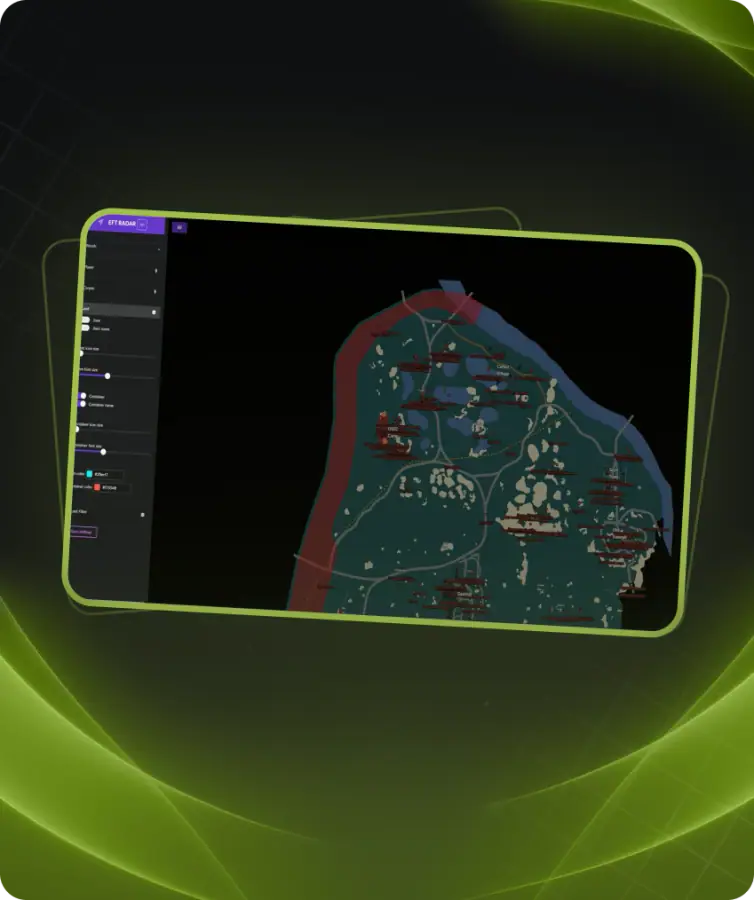
Get a secret radar that will become your reliable companion in the game world. Never get lost on the map again – it will reveal all players, bots, and bosses, as well as highlight valuable items that will help you survive and win. Player and bot highlighting gives you full control over your surroundings, allowing you to predict enemy movements and make strategic decisions. With flexible customization, you can tailor the radar to match your playstyle and personal preferences. Don't miss the chance to get this powerful tool and take your game to the next level! Gain an advantage over your opponents, spot valuable items, and dominate the battlefield. Get your private radar now and become unstoppable in Escape from Tarkov!
Select map - choose a map
• Factory
• Customs
• Woods
• Shoreline
• Interchange
• Lab
• Reserve
• LightHouse
• Streets of Tarkov
• GroundZero
Player
• Enable Player - enable player display
• Player name - enable player name display
• Player icon size - adjust player icon size
• Player Font Size - adjust player font size
• Team Icon Color - set ally icon color
• Enemy Icon Color - set enemy icon color
• Bot Icon Color - set bot icon color
• Name Color - set player name text color
Corpse
• Enable Corpse - enable corpse display
• Enable Corpse name - enable corpse name display
• Corpse icon size - adjust corpse icon size
• Corpse Font Size - adjust corpse font size
• Corpse Icon Color - set corpse icon color
Loot
• Enable Item - enable loot display
• Enable Item Name - enable loot name display
• Item icon size - adjust loot icon size
• Item Font Size - adjust loot font size
• Enable Container - enable container display
• Enable Container Name - enable container name display
• Container icon size - adjust container icon size
• Container Font Size - adjust container font size
• Item Icon Color - set loot icon color
• Container Icon Color - set container icon color
Loot Filter
• Item Loot Filter - enable item-based loot filter
• Item Price Filter - enable price-based loot filter
• Select Item - choose items to display
• Select price - set minimum loot display price
Exfil
• Enable Exfil - enable extraction point display
• Enable Exfil Name - enable extraction point name display
• Exfil icon size - adjust extraction point icon size
• Exfil Font Size - adjust extraction point font size
• Exfil Icon Color - set extraction point icon color
Quest
• Enable Quest - enable quest helper display
• Quest Info Window - display a window with full quest details
• Enable Marker - enable marker display
• Enable Marker Name - enable marker name display
• Hide Complete Marker - hide markers for completed quests
• Marker Font Size - adjust marker font size
• Marker Icon Size - adjust marker icon size
• Marker Icon Color - set marker icon color
Save Settings - save menu settings